Azure Networking Fundamentals for Dummies (AZ-140 Part 0)
 Hark SinghFebruary 22, 2026
So I am preparing for my AZ-140 exam (Microsoft Certified: Azure Virtual Desktop Specialty), and I was trying to understand the networking fundamentals with one simple analogy.
What is AVD (in normal words)?
AVD = Azure Virtual Desktop is Microsoft's service for running virtual Windows desktops and apps in Azure.
Before I go deeper into AVD, I needed to understand Azure networking fundamentals.
So here is my simple analogy: I am building a new SSW office.
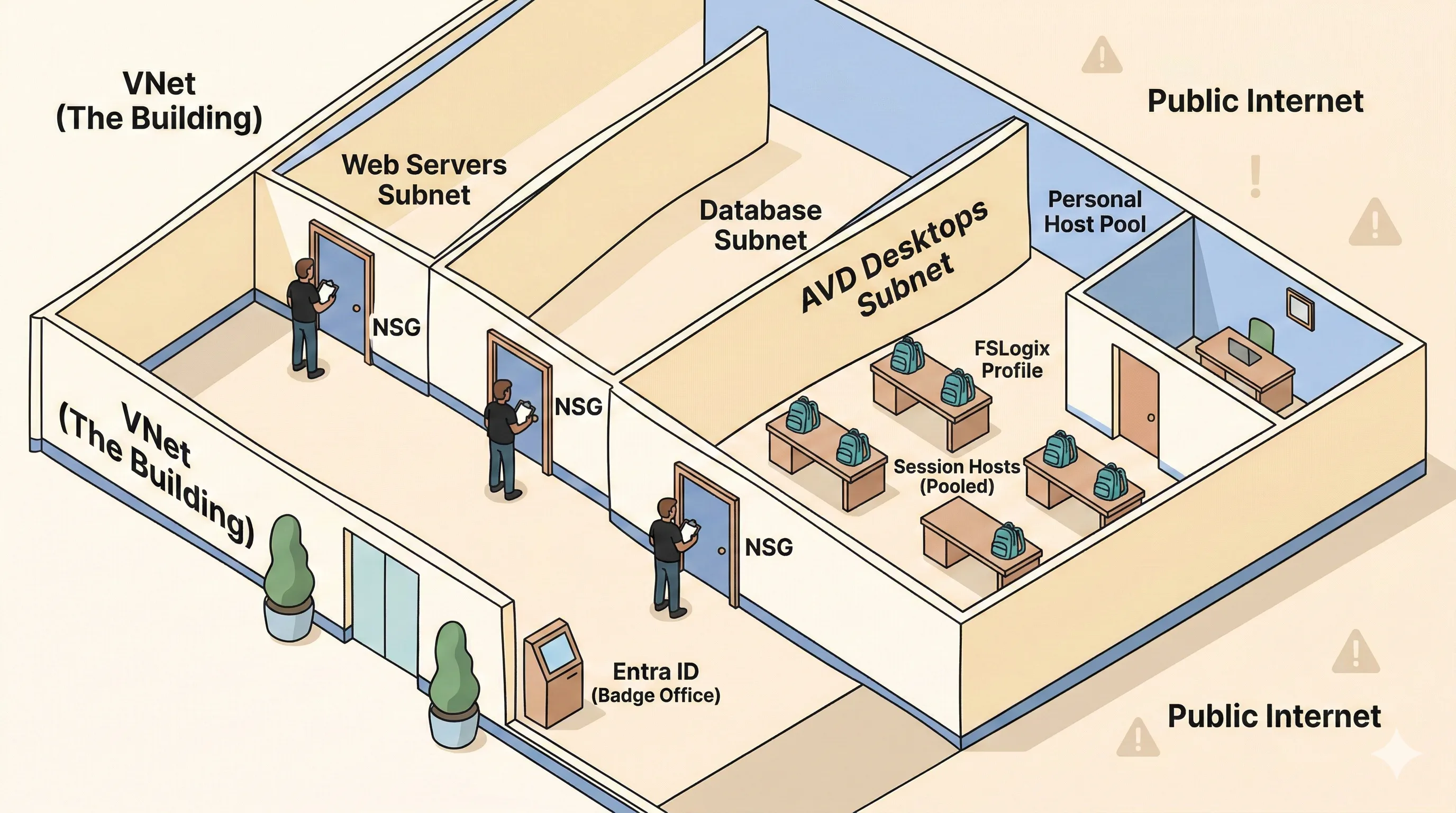
1) The Virtual Network (VNet) = The Building
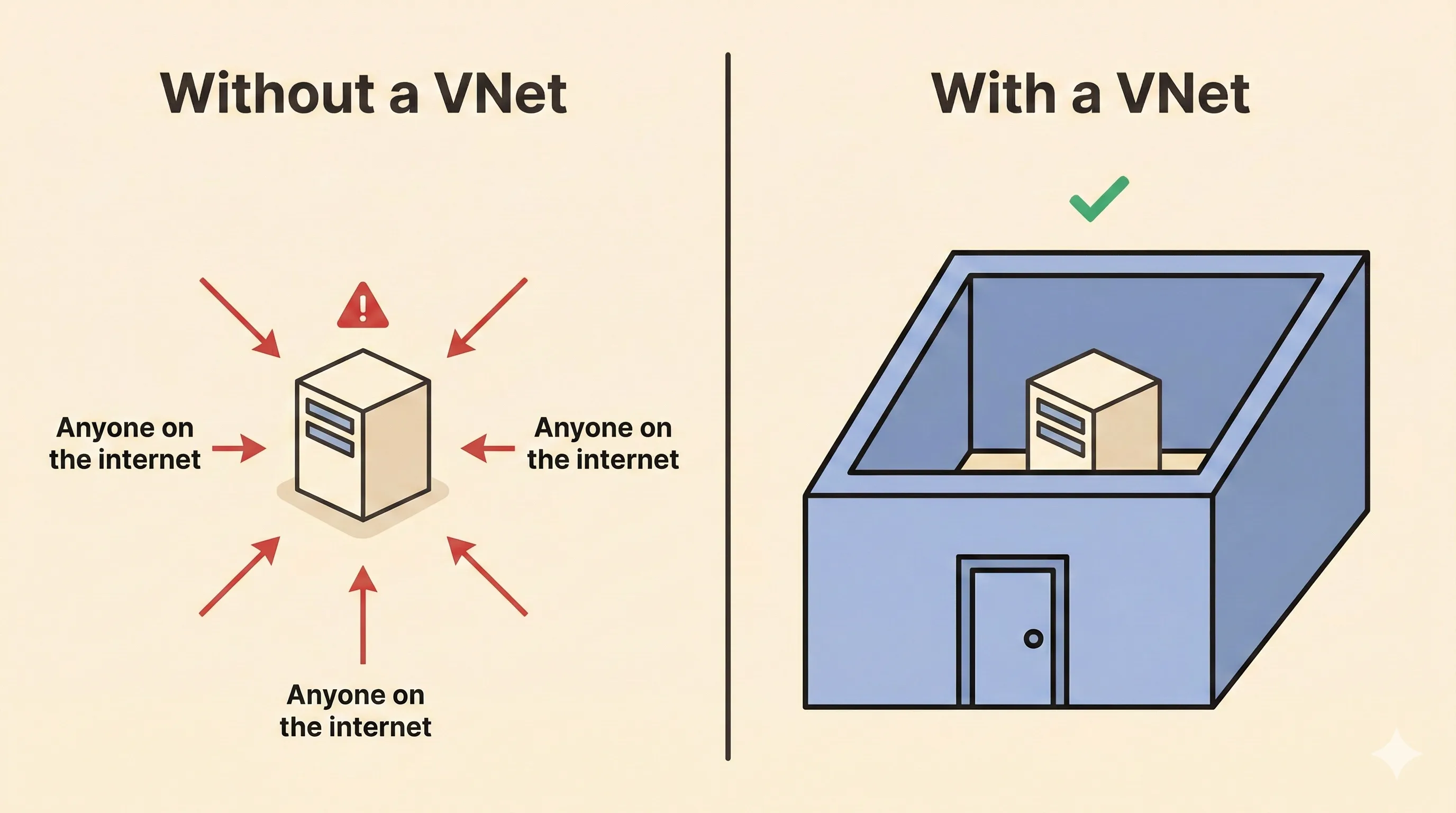
A VNet is essentially your private, fenced-off piece of land in the Azure cloud.
- What is it? It’s a logically isolated network. When you create a VNet, you are carving out a private space that belongs only to you.
- Why do we need it? If you spin up a server in the cloud without a private network, it’s essentially standing naked on the public internet. Anyone can see it and try to attack it. A VNet puts four walls around your resources so they can communicate with each other privately and securely.
- Why private? Because your internal databases, company files, and user desktops have absolutely no business being exposed to the wild internet.
2) Subnets = The Rooms
Now, you have a massive, empty building. But you wouldn't put the coffee machine, the HR team, the server racks, and the reception desk in one giant, chaotic, open-plan room. You build interior walls.
- What is it? A subnet (sub-network) is just a smaller, partitioned segment of your VNet.
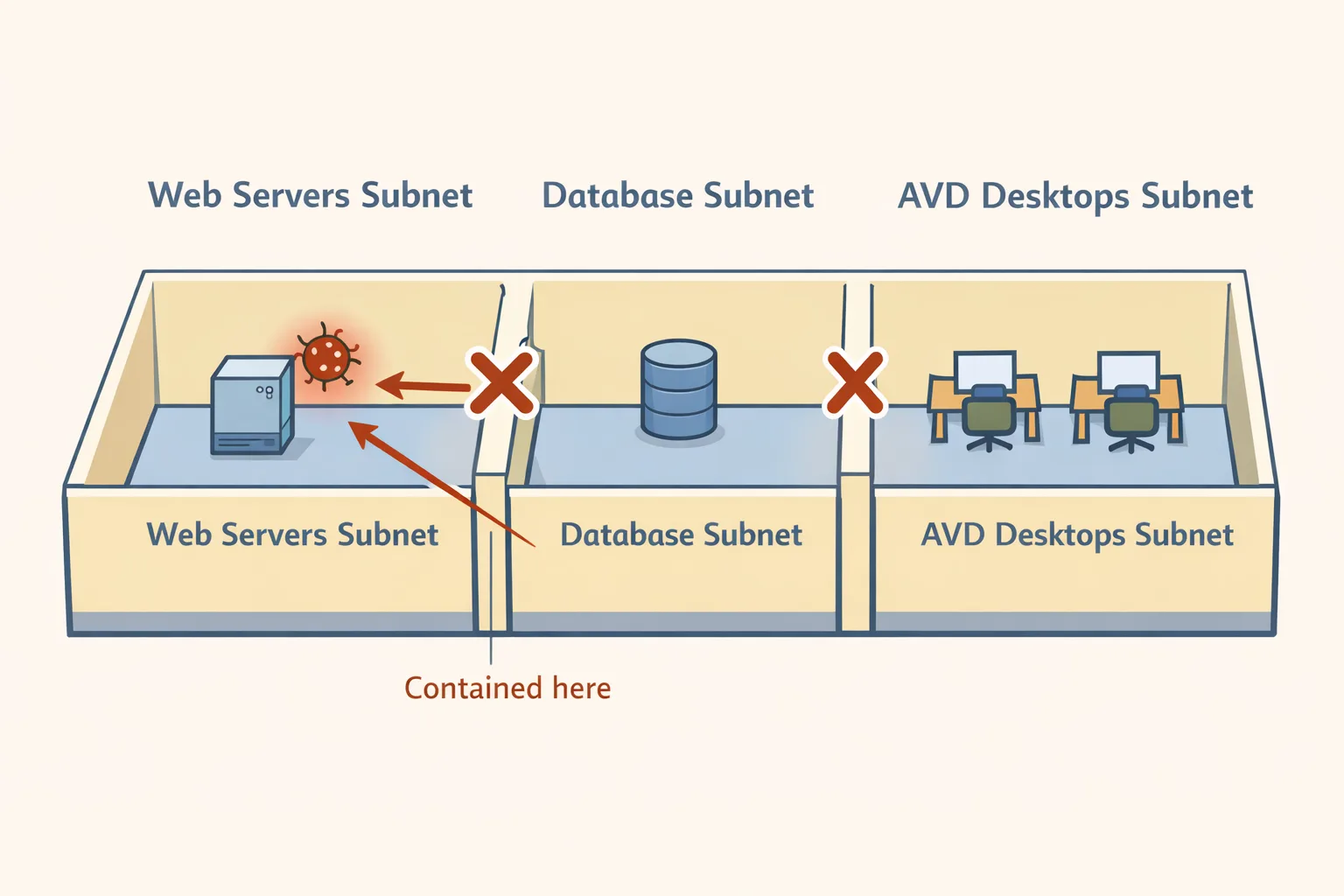
- Why do we need them? For organization and containment. You might create one subnet for "Web Servers," one for "Databases," and one for "Virtual Desktops."
- Why contain them? If a developer accidentally clicks a bad link and gets a virus, you want that virus trapped in the "Developer Subnet" room. You don't want it spreading freely into the "Database Subnet" room. Subnets let you divide the space logically.
3) Network Security Groups (NSGs) = The Security Guards
You have the building (VNet) and the rooms (Subnets). But doors are useless if anyone can just turn the handle and walk in.
- What is it? An NSG is a digital bouncer. It holds a clipboard with two lists: Allow rules and Deny rules. In Azure, you attach this bouncer to a room (Subnet) or directly to a desk's network card (VM NIC). It works purely on network rules: IP addresses, ports, and protocols.
- Why do we need them? Subnets just draw lines on the floor; they don't actually stop traffic by themselves. The NSG enforces the rules.
- Why enforce rules? By default, Azure lets everything inside a VNet talk to everything else. An NSG allows you to say, "The Web Server room can talk to the Database room, but the Database room is never allowed to talk directly to the outside internet."
Note: NSGs are network-layer bouncers only. They check the source IP and port on the clipboard, not the person's identity. The identity check (who you actually are) is handled separately by Entra ID, which we cover in the next section.
Let us keep building this SSW office. We have the building (VNet), the rooms (Subnets), and the security guards at the doors (NSGs).
Now, how do the guards actually know who is allowed inside, where they sit, and what tools they are allowed to touch?
That is where Entra ID, Session Hosts, and Application Groups come into play. Let's break them down.
4) Entra ID = The Badge Office & Security Clearance
You have security guards (NSGs), but they need a system to verify identities. Entra ID is your corporate Badge Office.
- What is it? It is your cloud badge system. It creates user identities and checks who is allowed in.
- Why do we need it? Because the guard (NSG) can block doors, but it cannot decide who the person actually is.
- How it fits AVD: Old setups were like keeping a badge printer in a dusty basement server room. Entra-joined AVD is like moving that badge office to the cloud, so every desk in your new SSW office can verify badges directly.
5) Session Hosts = The Desks & Computers
Once Entra ID scans a user's badge and the NSG lets them into the AVD Subnet room, they need a place to sit and work.
- What are they? The Session Hosts are the actual Virtual Machines (VMs) running Windows. They are the digital desks.
- Why do we need them? Because users need CPU, RAM, and an operating system to actually execute their work. The Session Host does all the heavy lifting in the cloud.
- How it fits AVD: There are two desk styles:
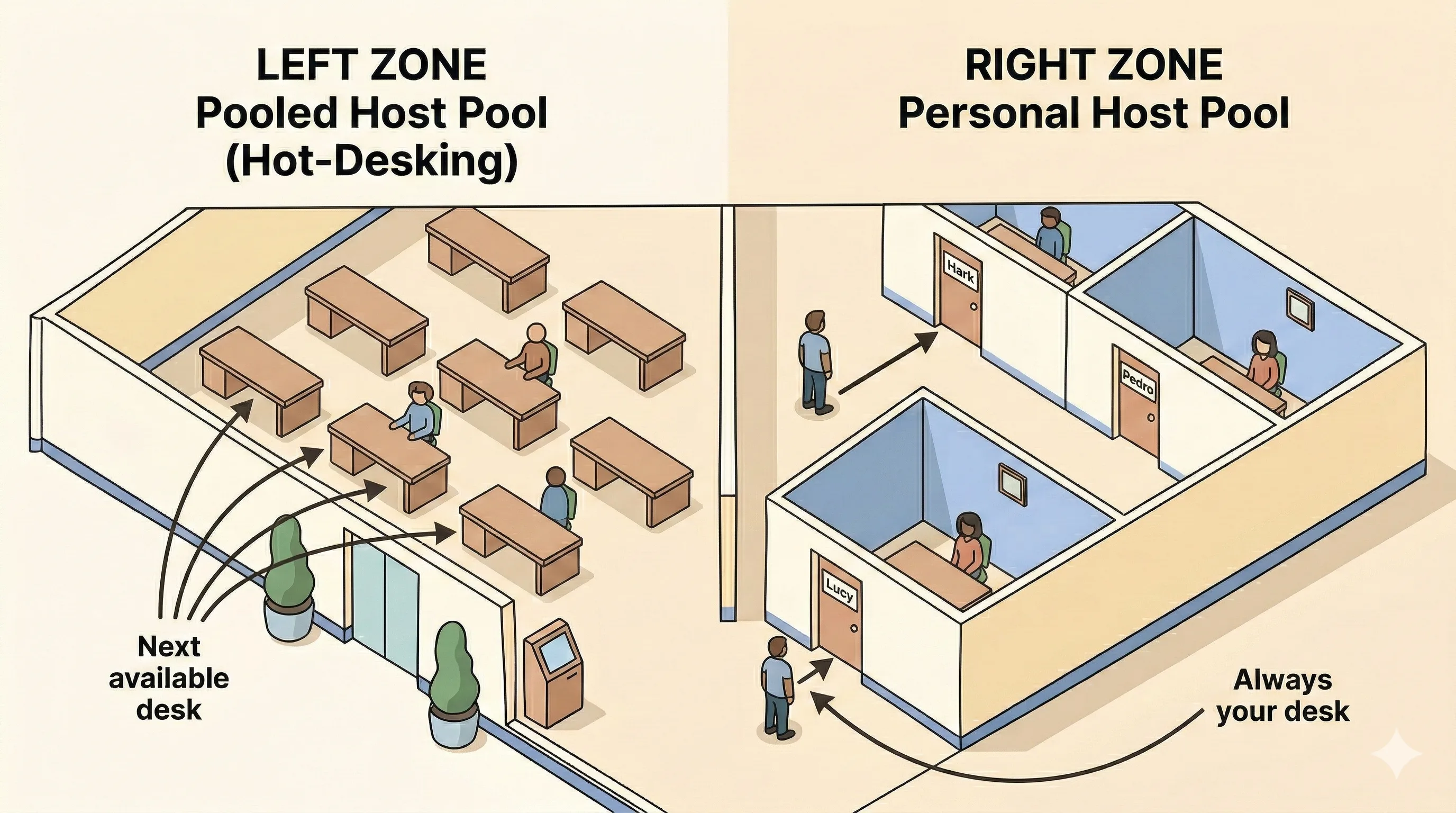
- Pooled host pool = hot-desking floor. Users are sent to the next available desk from a shared desk pool.
- Personal host pool = private office. One person gets one fixed desk.
- We will use these two terms again in the next sections, so keep this picture in your head: shared desks vs private desks.
6) Application Groups = The Tools on the Desk
So the user is at their desk (Session Host). What are they actually allowed to see and click on? The Application Group dictates this.
- What is it? It is a logical grouping that dictates the "payload" you deliver to the user's screen.
- Why do we need it? Because not everyone needs a full computer. Sometimes you just need to hand someone a specific tool without giving them access to the whole Windows operating system.
- How it fits AVD? There are exactly two types of Application Groups, and you will be tested on the difference:
- Desktop Application Group: You give the user the entire desk. They see the full Windows 11 desktop, the Start menu, the taskbar, and the recycle bin. (Exam trick: You can only have one Desktop Application Group per host pool).
- RemoteApp Application Group: You don't give them the full desk; you just hand them a single tool. Let's say you want your team to test out YakShaver. Instead of giving them a full desktop, you publish only the YakShaver app via a RemoteApp group. To the user, it pops up and looks like a normal app running locally on their laptop, but all the processing is actually happening on the Session Host in Azure. (Exam trick: You can have multiple RemoteApp groups per host pool).
So, to trace the whole journey: A user flashes their Entra ID badge to get past the NSG, enters the VNet/Subnet, sits down at their Session Host, and opens the tools provided by their Application Group.
The big problem: hot-desking amnesia
We have the building (VNet), the rooms (Subnets), the security guards (NSGs), the badge office (Entra ID), the desks (Session Hosts), and the tools (Application Groups).
But there is one massive problem we haven't solved yet: The Hot-Desking Amnesia.
Imagine at SSW office, we deployed a pooled host pool to save money. On Monday, you log in and get assigned to Desk A (VM-01). You spend an hour setting up your dark mode theme, syncing your Outlook, and saving your latest YakShaver source code to your desktop.
On Tuesday, you log in again. This time, you get Desk B (VM-05). You sit down, and the desk is completely empty. Your theme is gone, your Outlook is empty, and your code is missing.
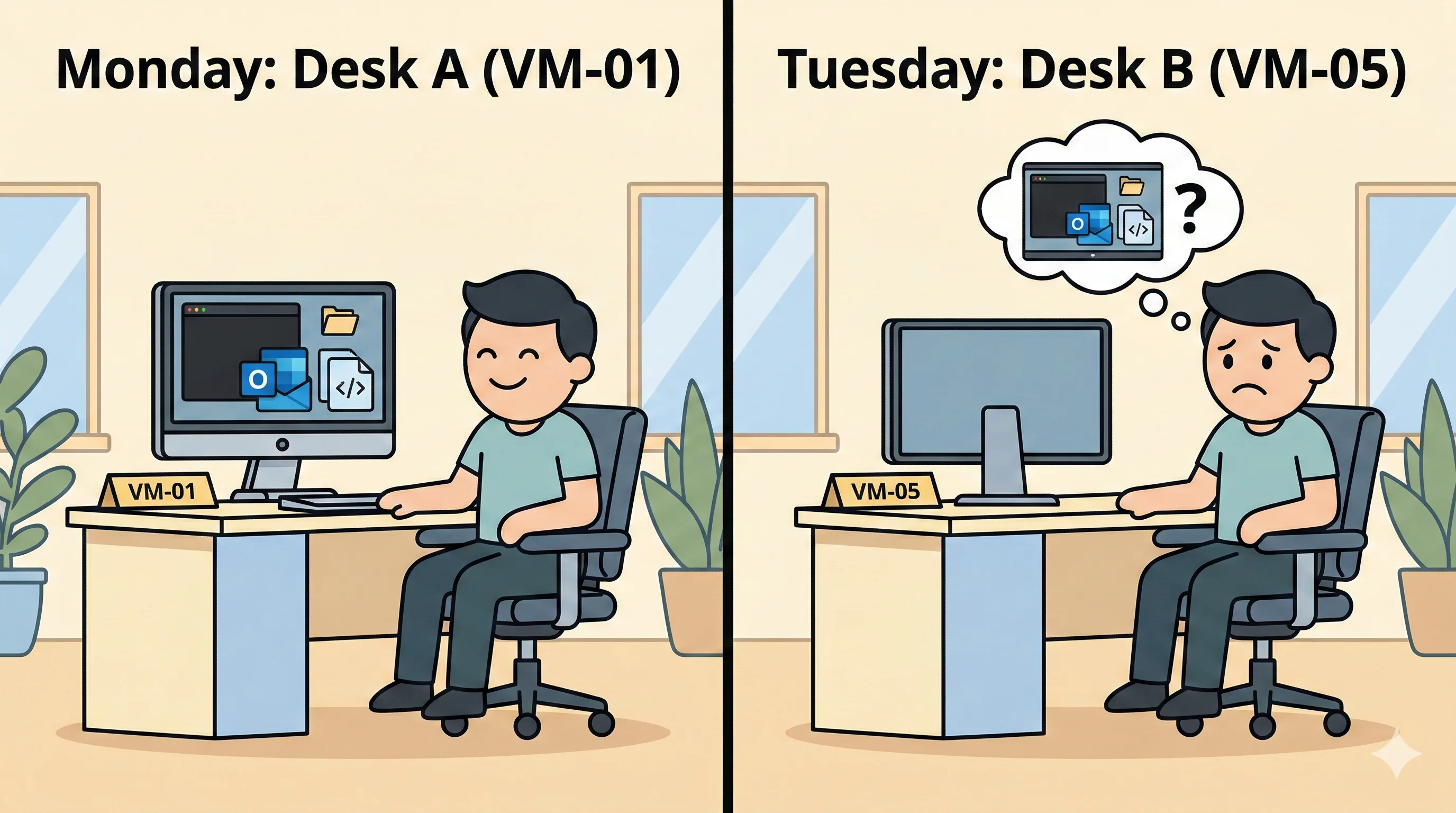
How do we fix this without forcing you to sit at the exact same desk every single day?
Enter FSLogix = The Magical Backpack
7) FSLogix = The Magical Backpack
FSLogix is Microsoft's solution for profile management, and it is the magic trick that makes non-persistent (pooled) virtual desktops feel exactly like a dedicated laptop.
- What is it? It is an agent installed on the Session Hosts that redirects your entire user profile (
C:\Users\Hark) into a single, dedicated Virtual Hard Disk file (a VHD or VHDX file). - Why do we need it? Because copying a massive user profile file-by-file across the network every time you log in (the old "Roaming Profiles" method) takes minutes and easily corrupts. FSLogix streams the profile at the block level.
- How it fits AVD? Think of the VHDX file as your Magical Backpack. We store everyone's backpacks in a highly secure, lightning-fast centralized "Locker Room" (usually Azure Files Premium or Azure NetApp Files).
- You badge in via Entra ID.
- You are routed to any available desk (Session Host).
- The moment you sit down, the FSLogix agent grabs your specific backpack from the Locker Room and instantly "mounts" it to the desk over the network.
- To Windows, your profile appears in the usual place (
C:\Users\<you>). It feels local, but the data is coming from that network-backed backpack. When you log off, the backpack detaches and is safely stored again.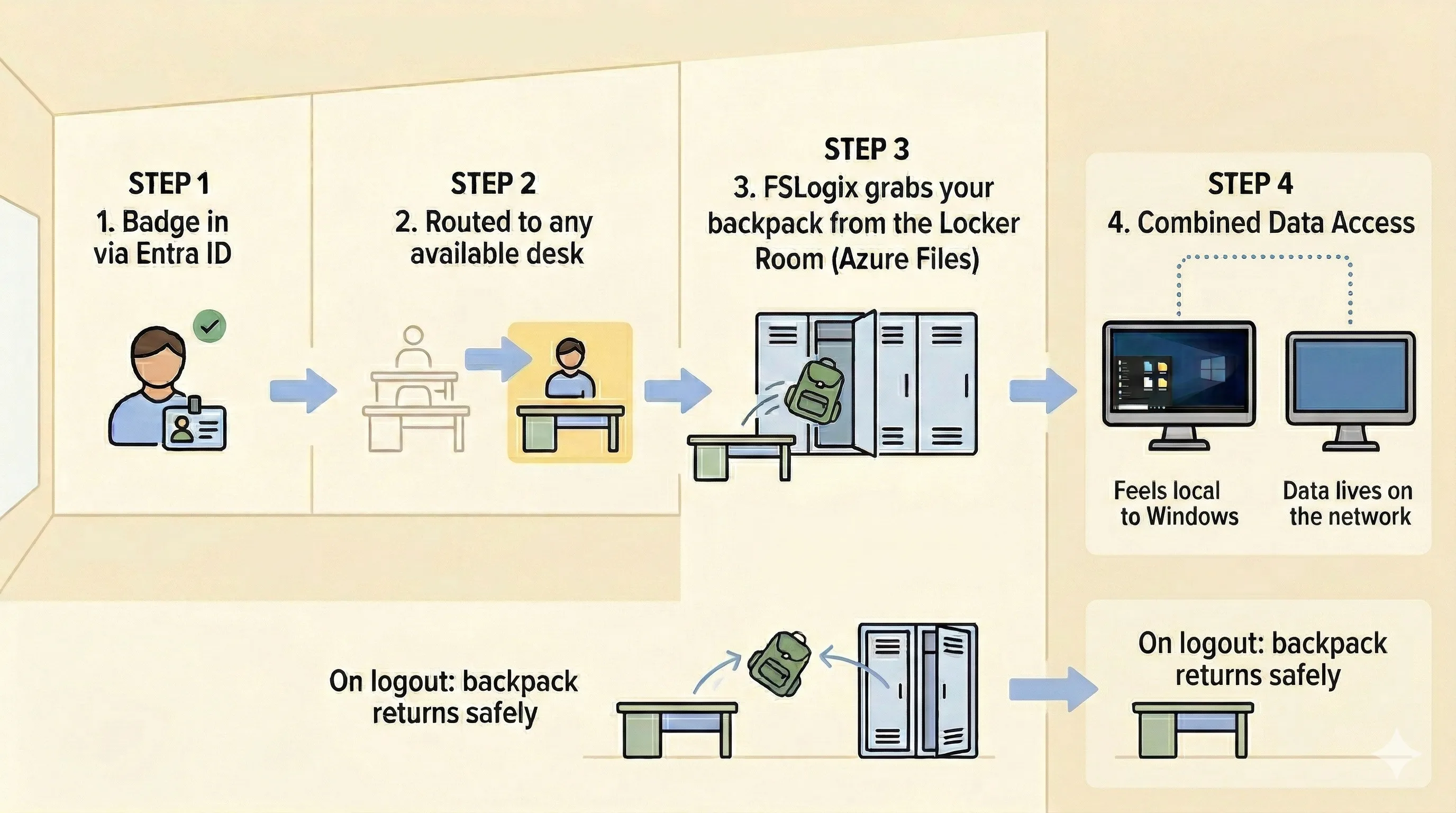
Figure: The FSLogix login flow - your profile backpack is fetched from the central locker room the moment you sit down, and returned safely when you log off.
Important: The Locker Room doors use traditional AD DS keys by default. For the doors to accept a modern Entra ID badge instead, your user accounts must be hybrid identities (synced from AD DS into Entra ID via Microsoft Entra Connect). A purely cloud-only Entra ID account accessing FSLogix via Entra Kerberos is still in preview. We will go deeper on this in Part 1 when we cover AD DS and identity options.
AZ-140 gold: three FSLogix details
A) VHDLocations vs Cloud Cache
VHDLocations: standard approach, usually one primary profile pathCCDLocations(Cloud Cache): multiple locations for better resiliency
Cloud Cache can improve availability, but it increases local disk I/O requirements on session hosts because of how the cache is handled.
B) Storage permissions
If permissions are wrong, profile attach fails. Full stop.
Users need correct access to their own profile container, not everyone else's. Misconfigured share/NTFS permissions are one of the most common FSLogix failure causes.
C) Application Masking
This is a bonus feature of the FSLogix suite. Let's say you have an SSW golden image with 50 applications installed, but you only want the HR team to see the HR app, and the Dev team to see Visual Studio. Instead of maintaining two separate golden images, you use FSLogix App Masking. It uses a filter driver to literally hide the files, folders, and registry keys of an application from a user based on their Entra ID group.
That’s enough SSW office construction for one day. As I continue my AZ-140 learning journey, I’ll keep adding more posts in this series for anyone who wants to understand these concepts in more detail. Next up: Active Directory and Domain Services for Dummies (AZ-140 Part 1).